How to Turn On Live Caption in Chrome and Translate It
Turn on Chrome Live Caption, set up Live Translate without getting garbled text, and fix missing caption bubbles, stuck language switching, and SODA download errors.
Summary
- Enable Live Caption in Chrome Settings Accessibility (or from the toolbar Media control button) and customize the floating bubble.
- Set Preferred caption language to the language being spoken in the audio, and use Live Translate to pick the language you want to read.
- Understand the privacy split: basic Live Caption runs locally offline, while Live Translate sends caption text to Google servers.
- Fix muted autoplay issues, stuck multi-language SODA bugs, missing languages, and see what to use when you need system-wide audio or saved transcripts.
Chrome has a built-in captioning engine tucked inside its accessibility menu that transcribes audio playing in any browser tab—whether that is a podcast, an uncaptioned lecture video, a Twitch livestream, or a local MP4 file you dragged into a tab. You do not need to install an extension or pay for a subscription to use it.
Most people only run into trouble when they try to use it on non-English audio or turn on Live Translate. If you pick the wrong language dropdown, Chrome outputs a stream of gibberish; if you switch between videos in different languages, the caption bubble frequently gets stuck on the previous language or stops showing up at all. Here is how I set up both features, how to avoid the language configuration trap, and what actually works when the caption bubble breaks.
On this page
Where to Turn On Chrome Live Caption (and the Toolbar Shortcut)
If you are on Windows or Mac, click the three-dot More menu in the top-right corner of Chrome, open Settings, click Accessibility in the left sidebar, and flip the Live Caption toggle on. On Linux, the path has one extra click: go to Settings > Accessibility > Captions and turn on Live Caption there. On a Chromebook, open your system Settings, select Accessibility > Audio and captions (or Manage accessibility features > Audio and captions), and toggle Live Caption on.
The first time you flip that switch, Chrome downloads a local speech recognition pack in the background. It usually takes a few seconds on a fast connection, and only covers English out of the box.
Once you have turned Live Caption on once, you do not need to open Settings again to toggle it. Whenever a tab is playing audio, a Media control button (the musical note icon next to your extensions in the top-right toolbar) appears. Clicking that icon gives you a quick switch to turn Live Caption on or off on the fly.
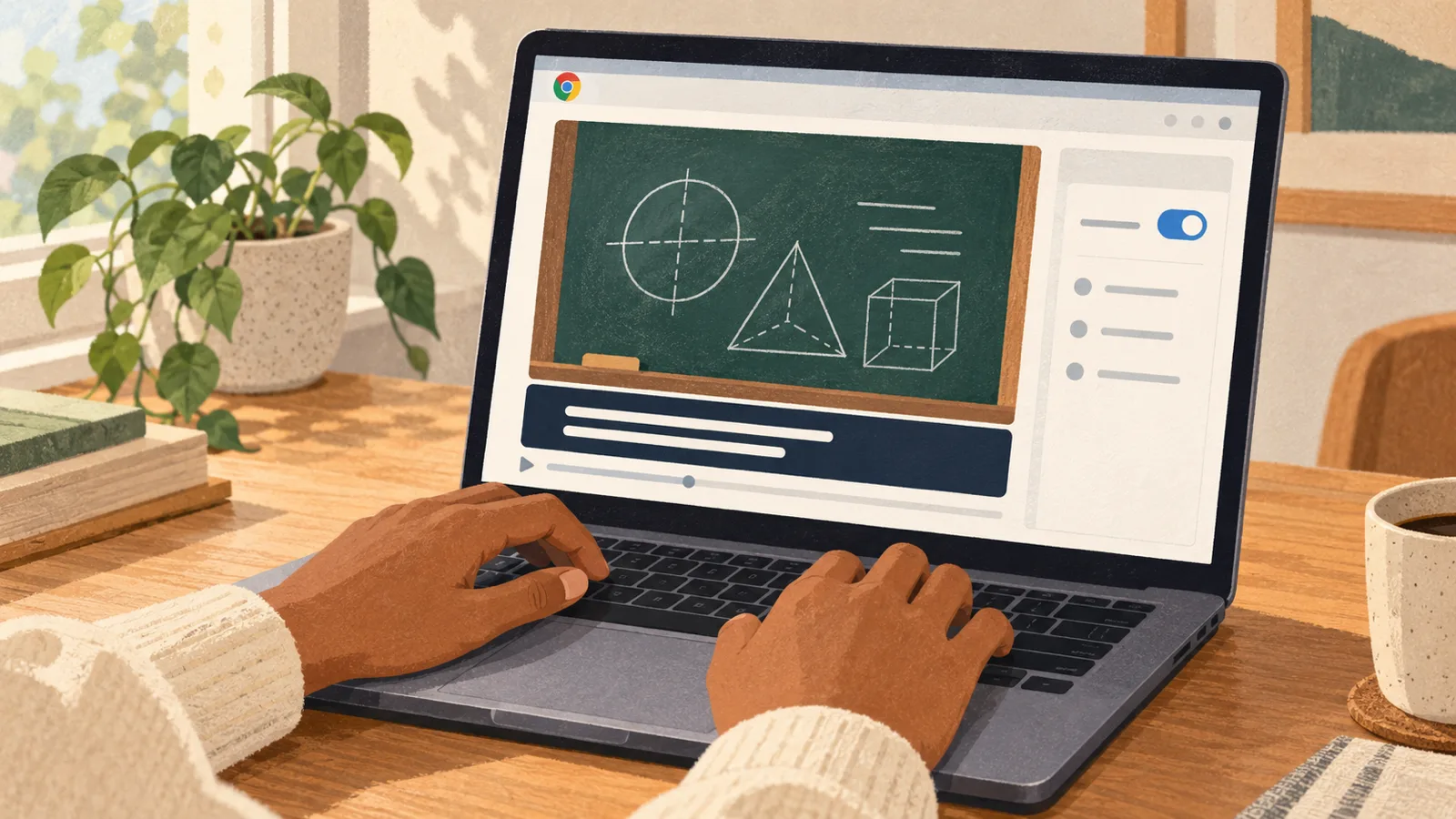
When audio plays, the captions show up in a dark floating bubble near the bottom of your browser. You can drag that bubble anywhere on the screen, click the down arrow inside it to expand the box and show more lines of text, or click Back to tab to jump straight to whichever background tab is producing the sound. If you close the bubble by clicking its X button, it stays hidden for that session until you refresh the page or flip the Media control toggle off and back on. To change the font, text size, or background color, click Caption preferences right below the Live Caption switch in Chrome's Accessibility menu—on Windows, Mac, and Linux, that opens your operating system's native caption style settings, while on a Chromebook you can change the text font directly under Audio and captions.
Setting Up Live Translate Without Getting Gibberish
Turning on Live Translate right below Live Caption lets Chrome translate those captions into over 100 target languages. This is also where most setups go wrong, because Chrome separates the language it listens for from the language it displays, and the labels in the menu are easy to mix up.
If you want to watch a Japanese video with English subtitles, do not leave your caption language set to English and just turn on translation. If you do that, Chrome uses its English speech model to guess what the Japanese speaker is saying, transcribes phonetic nonsense in English, and never translates a thing.
Instead, stay in Settings > Accessibility (or Accessibility > Captions on Linux) and look next to Manage languages. Click Add languages, find the language that is actually being spoken in the video, and install it so Chrome downloads that speech pack. Once it says the pack is up to date, open the Preferred caption language dropdown and select that spoken source language. Only after the input language matches the speaker should you toggle on Live Translate and set Translate to to the language you want to read.
There is an important catch with language availability. While the Translate to menu covers over 100 languages, speech recognition only works for a much shorter list of spoken languages—as listed on Google's official Manage captions and translations in Chrome help page, that includes English, Simplified and Traditional Chinese, Danish, Dutch, French, German, Hindi, Indonesian, Italian, Japanese, Korean, Norwegian, Polish, Portuguese, Spanish, Swedish, Thai, and Turkish. Even then, Google lists several of those under its Chromebook Plus documentation before they reach every desktop build. For example, if you try to add Dutch on Windows or Mac, you will often find it inside the Translate to output menu while it is completely absent from the Add languages input list. If a language is not available under Add languages on your computer, Chrome cannot transcribe audio spoken in it.
You should also know the privacy boundary between the two switches. Basic Live Caption runs entirely on your device: once the language pack is downloaded, it works offline, and neither your audio nor the caption text ever leaves your machine. Live Translate is different. The moment you enable Live Translate, Chrome sends the generated caption text to Google's servers for translation, which requires an internet connection. When I am on a confidential work call or reviewing private recordings in the browser, I leave Live Caption on and keep Live Translate off.
Why Chrome Live Caption or Live Translate Stops Working
When the caption bubble refuses to appear on a video that clearly has people talking, the most common culprit is an autoplaying muted player. Social feeds and news sites frequently start videos with the player volume muted. Chrome's captioning engine ignores muted video elements by design—you have to unmute the video player itself and keep the Chrome tab unmuted for captions to trigger. If you are in a quiet room and cannot play sound out loud, plug in headphones or mute your computer's master system volume while leaving the video player's volume slider up.
If the video is unmuted and English captions work fine, but a newly added language does nothing—or removing and re-adding a language throws "Can't download speech files. Try again later"—you are hitting a failure in Chrome's Speech On-Device API (SODA) downloader. I have seen Ubuntu Linux builds download and load the Japanese SODA model cleanly, caption English ads without issue, and still refuse to spawn the bubble whenever Japanese speech starts. You will see advice online telling you to delete the Speech Recognition, SODA, or SODALanguagePacks folders inside your Chrome user data directory, or to disable hardware acceleration, but in practice those steps rarely fix a broken speech pack.
A related SODA bug happens when you have three or four languages installed and switch from a video in one language to a video in another. If I watch a French clip and then open a German broadcast with Translate to set to English, Chrome frequently stays locked on French -> English, outputs garbled words, and hangs on Translating..., or fails to show the bubble altogether on non-English videos. You can try updating Chrome via Help > About Google Chrome and restarting the browser, or switching the Translate to target language away from English to another language you read to see if language detection unsticks itself. Because this comes down to underlying Chrome SODA version and server-side bugs, reinstalling Chrome does not clear it; if neither workaround works on your build, you have to wait for a later Chrome update to patch it.
Live Translate also hits a ceiling on fast, unscripted audio. On livestreams where YouTube's built-in auto-translate is unavailable, Chrome's translator waits for natural pauses before sending text chunks to Google and returning the translated line. When a streamer talks rapidly without pausing, or when multiple people talk over each other, the translation often freezes after a minute or drops more than half of what is being said while plain untranslated captions keep rolling normally.
Two strange edge cases are worth ruling out before you spend twenty minutes troubleshooting Chrome:
If you turned off both Live Caption and Live Translate in Settings and still see subtitles at the bottom of a video, open the same link in an Incognito window. If the subtitles disappear in Incognito, they are not coming from Chrome Live Caption—an installed extension or the website's own video player profile is generating them. And if you run Chrome on Linux under a tiling window manager like Hyprland, Chrome opens the Live Caption bubble as a separate top-level window sharing the google-chrome class, which causes the window manager to tile the caption box beside your browser unless you add a window rule forcing windows titled Live Caption or Live Translate to float.
Finally, if you are on a work or school laptop and the toggles in Settings > Accessibility are missing or greyed out, open chrome://policy in your address bar. IT administrators often lock LiveCaptionEnabled or LiveTranslateEnabled to false. Because Live Translate requires Live Caption to run, disabling LiveCaptionEnabled shuts down both features until your admin changes the policy.
Where Chrome Hits a Wall (and What to Use Outside the Browser)
Even when Chrome's caption bubble behaves, it is built strictly as a temporary reading aid for web media.
First, it is deaf to anything outside Chrome. If you join a call in the Zoom or Microsoft Teams desktop app, or play a lecture recording in a desktop media player, Chrome cannot hear it unless you move that workflow into a Chrome browser tab. Second, it does not separate speakers, so a three-person panel turns into one continuous block of text. Third, the captions are completely ephemeral: the second you close the tab or refresh the page, every line is gone, with no transcript history and no way to export an SRT or text file. (If you are trying to keep text from built-in tools, I broke down what actually gets kept in my guide on how to save live captions on Mac, iPhone, Zoom, and Teams.)
If you only need a free floating caption bar that listens to your whole operating system rather than just browser tabs, use Windows 11 Live Captions (Win + Ctrl + L) on a PC or Apple's built-in Live Captions on an Apple silicon Mac. You can see how those compare across platforms in my overview of how to turn on live captions on every device.
When I kept running into Chrome's limits—needing to caption desktop meetings and foreign-language streams without the SODA translator hanging mid-sentence, and needing the full text saved after the window closed—I built Vocena. It captures both system audio and microphone input across your computer regardless of which app is playing sound, displays live transcription and translation side by side, and keeps the full session history so you can review or export the transcript whenever you finish.